# English Hentai Complete Collection 1.0 | Plex | Hama | AniTag - Dec 05, 2025
Well, here we are....
#### Collection Overview
I spent a few days collecting and sorting out this collection. Most of them are softsubs, at least the ones I could find, and in the best quality (except BDMV's because that's just ridiculous, lol).
#### Completeness and Updates
This collection aims to be as complete as possible, but if you find anything missing, please let me know in the comments. I plan to release updated versions every few months. Updates should include any new releases or improvements to existing files.
#### Organization
All files are organized by series and episode number, making it easy for media managers like Plex (with HAMA/ASS), AniTag etc. to match metadata from AniDB. The folder names are based on the series titles on AniDB. There are no duplicate files.
#### File Labels
Some files in the collection are labeled as `(RAW)` for episodes that currently do not have subtitles available, typically for newer releases. Previews are marked as `(Preview)`.
#### AniDB and AniTag Integration
Because AniDB may temporarily block IPs after around 200 requests, I’ve included all essential AniDB files. Follow the included instructions to allow HAMA to sync the entire collection with Plex in a single operation. I have also included AniTag files, just follow the instructions to setup it up on your machine as-is.
#### Seeding
I will try to seed this collection as much as possible, but I will definitely need help from the community to keep it alive. So please **Seed** it if you can!
#### Acknowledgements
Thanks to everyone who made these files available. Especially,
- Abysswalker
- Obscurerips
- SakuraCircle
- Ero-teca
- SubDESU-H
## Plex + HAMA + Absolute Series Scanner (ASS) Setup
1. Download and install Plex Media Server from [plex.tv](https://www.plex.tv/).
2. Download HAMA from [GitHub](https://github.com/ZeroQI/HAMA).
3. Follow the instructions [here](https://github.com/ZeroQI/HAMA#installation) in the HAMA repository to install the agent.
4. Restart Plex.
In the end, you should have HAMA added to:
`C:\Users\{YourUsername}\AppData\Local\Plex Media Server\Plug-ins\Hama.bundle`
and ASS added to:
`C:\Users\{YourUsername}\AppData\Local\Plex Media Server\Scanners\Series`
Once the Plex server restarts, HAMA should create additional files at:
`C:\Users\{YourUsername}\AppData\Local\Plex Media Server\Plug-in Support\Data\com.plexapp.agents.hama`
Extract the `Helpers.zip` included in this torrent and copy the extracted contents of `Plex/AniDB.zip` to `C:\Users\{YourUsername}\AppData\Local\Plex Media Server\Plug-in Support\Data\com.plexapp.agents.hama\DataItems\AniDB`. Replace the existing files if prompted.
5. Now add the `Hentai Collection` as a path to the new Plex library and select `Absolute Series Scanner` as the scanner and HAMA as the agent for your new library.
6. Click `Save Changes` and it should start syncing the whole collection.
Note: **There might be some shows that Plex may misidentify. Make sure to check for any duplicate episodes or unmatched shows and match them manually.**
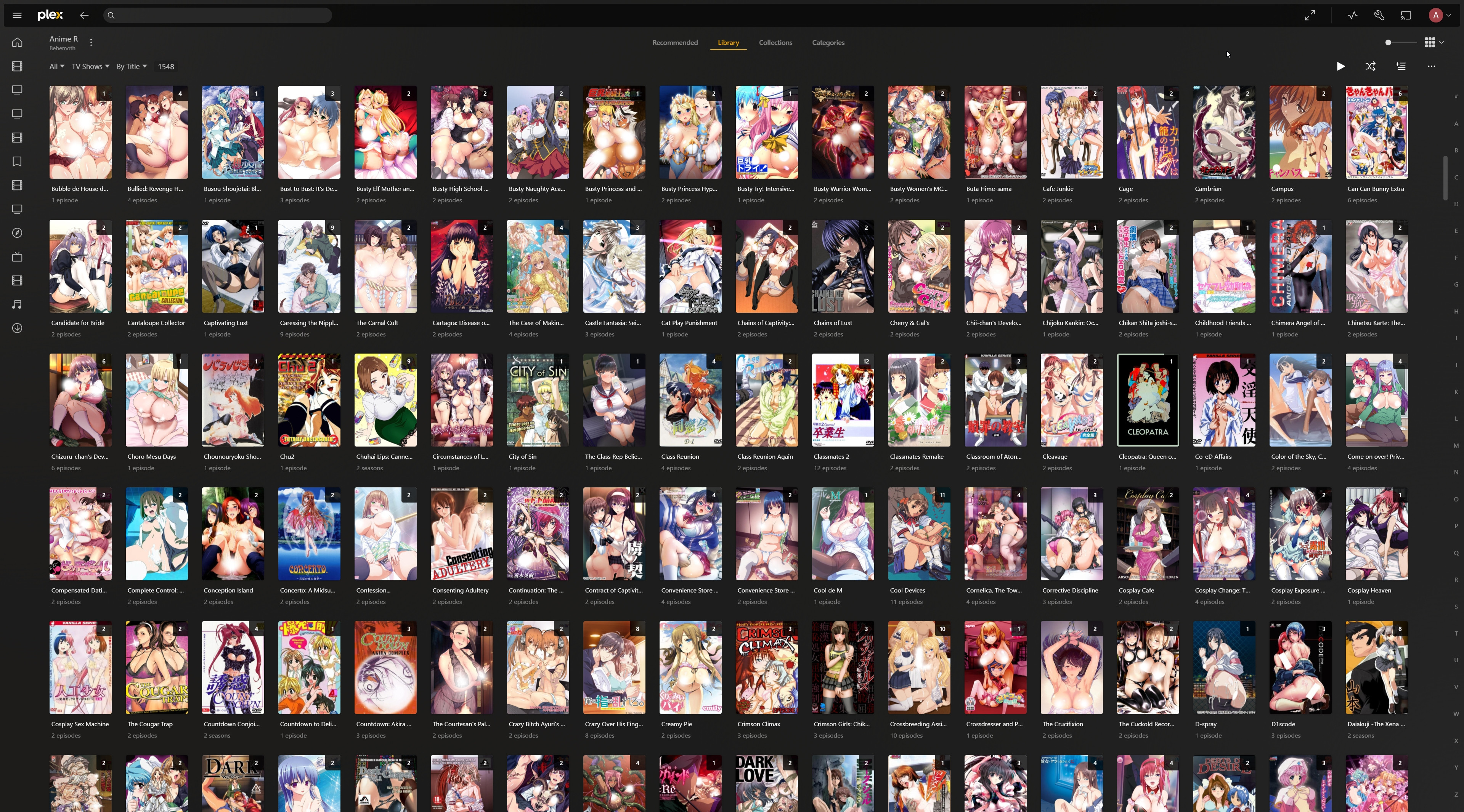
Plex - Alphabetical Order - 1
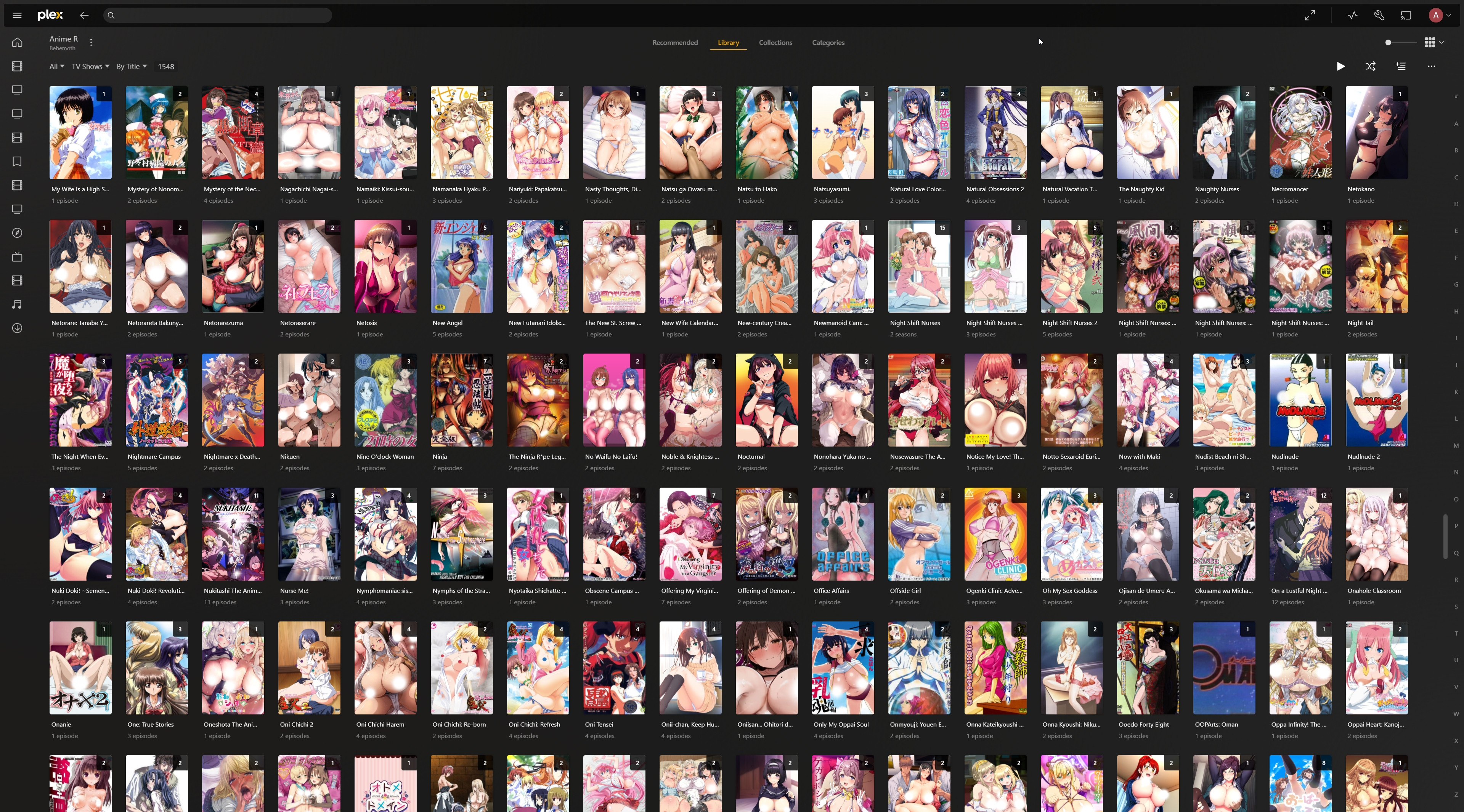
Plex - Alphabetical Order -2
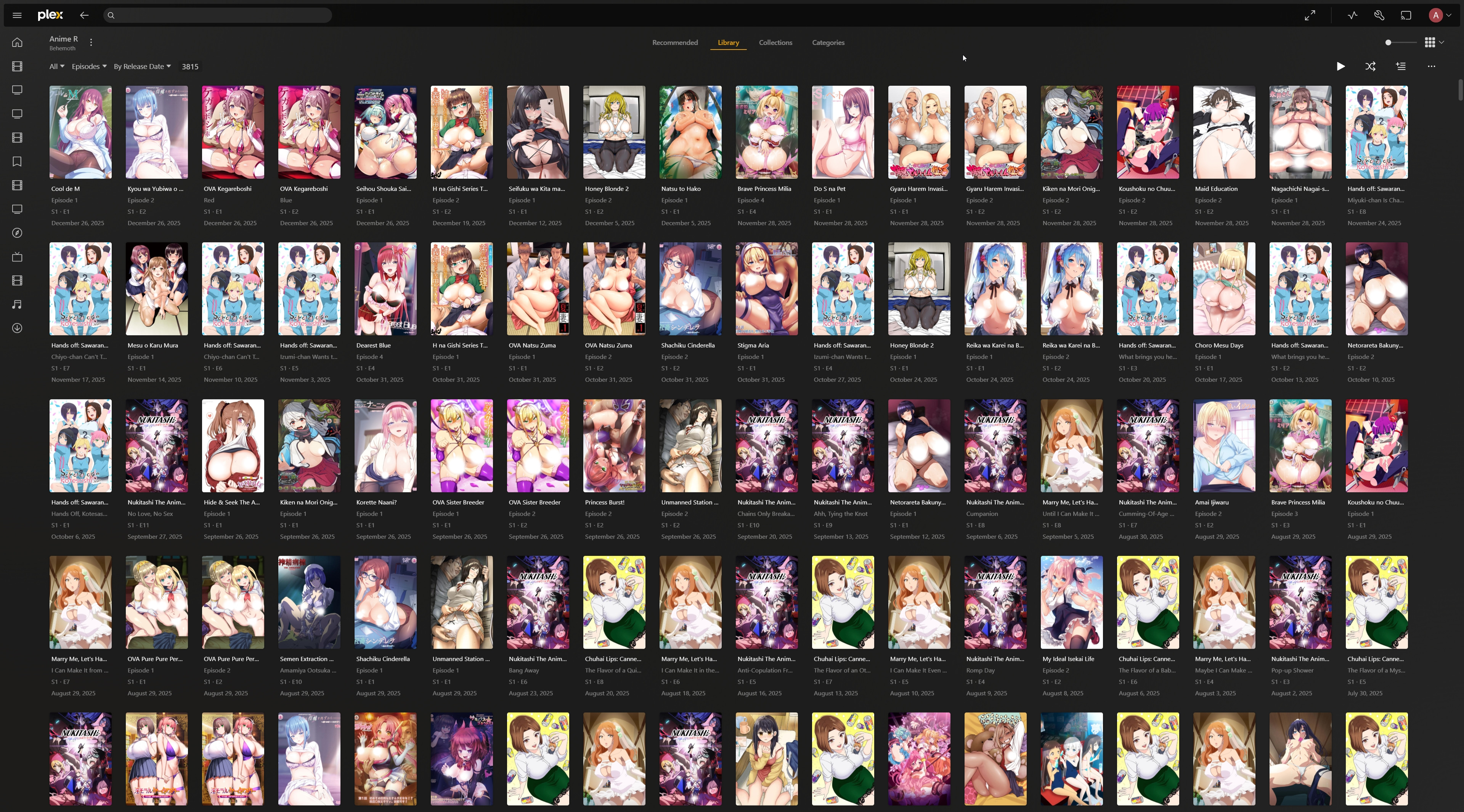
Plex - Episodes - Order by Release Date
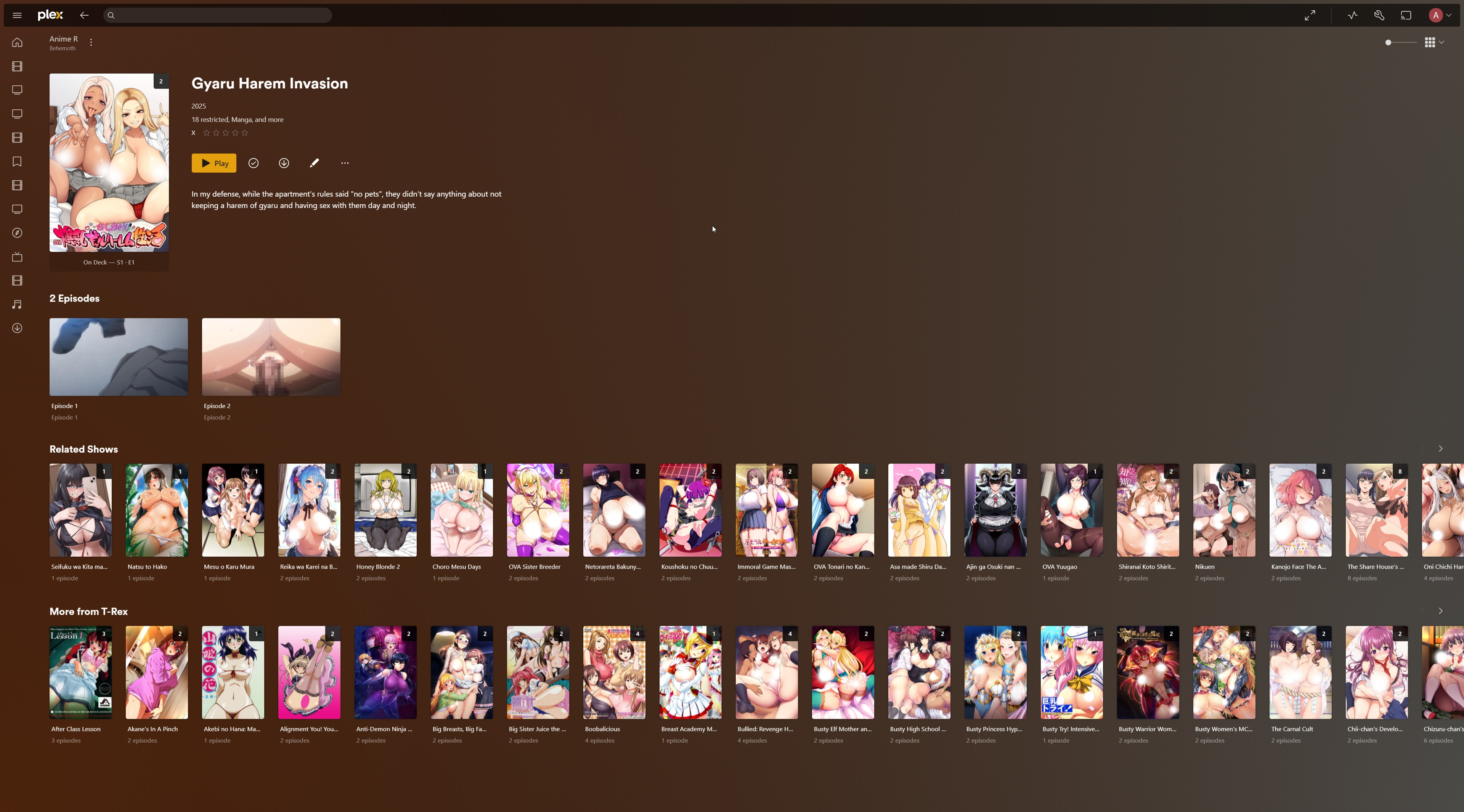
Plex - Show
## AniTag Setup
1. Extract `Helpers.zip` included in this torrent and AniTag is included in `AniTag/AniTag 1.1.4.zip`. Extract that zip to a folder of your choice.
2. Open `AniTag.exe` at least once to generate the necessary database files.
3. Create a new library called `Temp` in AniTag. Consider the steps [here](https://github.com/Sirosky/AniTag?tab=readme-ov-file#quick-start-guide).
4. Close `AniTag.exe`.
The AniTag database files should be located at `C:\Users\{YourUsername}\AppData\Roaming\Godot\app_userdata\AniTag`.
Extract the included `AniTag/db.zip` to this location. In the end the path should be `C:\Users\{YourUsername}\AppData\Roaming\Godot\app_userdata\AniTag\db\anidb`. Replace the existing files if prompted.
5. Replace the `_Settings` section including the content inside curly braces at the end of file `C:\Users\{YourUsername}\AppData\Roaming\Godot\app_userdata\AniTag\db\Hentai Collection.json` with `C:\Users\{YourUsername}\AppData\Roaming\Godot\app_userdata\AniTag\db\Temp.json`.
6. Edit the database file at `C:\Users\{YourUsername}\AppData\Roaming\Godot\app_userdata\AniTag\db\Hentai Collection.json` and do a find and replace for all instances of `K:/Plex/Hentai Collection` with your local path to `Hentai Collection` folder.
7. Open `AniTag.exe` again and load the `Hentai Collection` library.
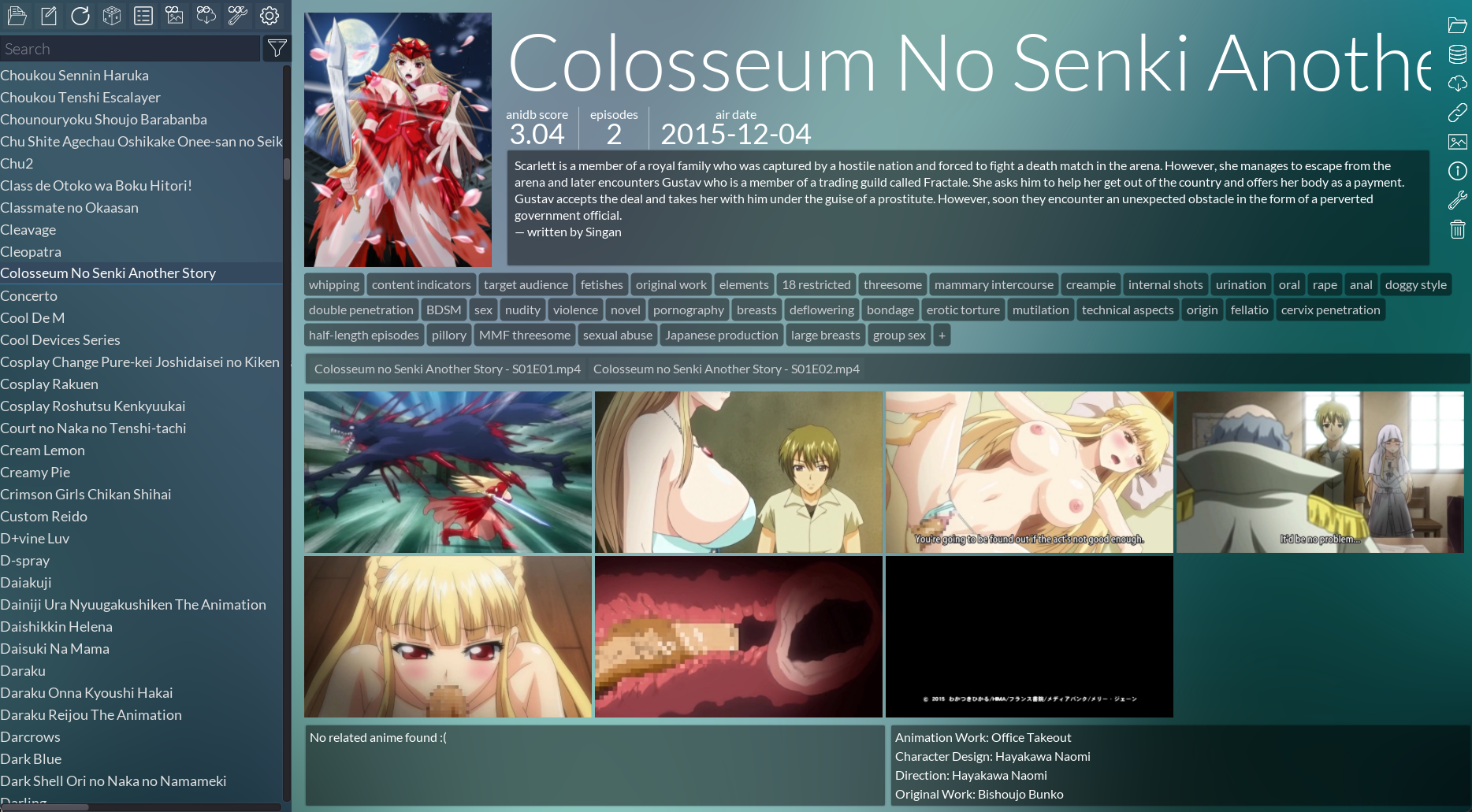
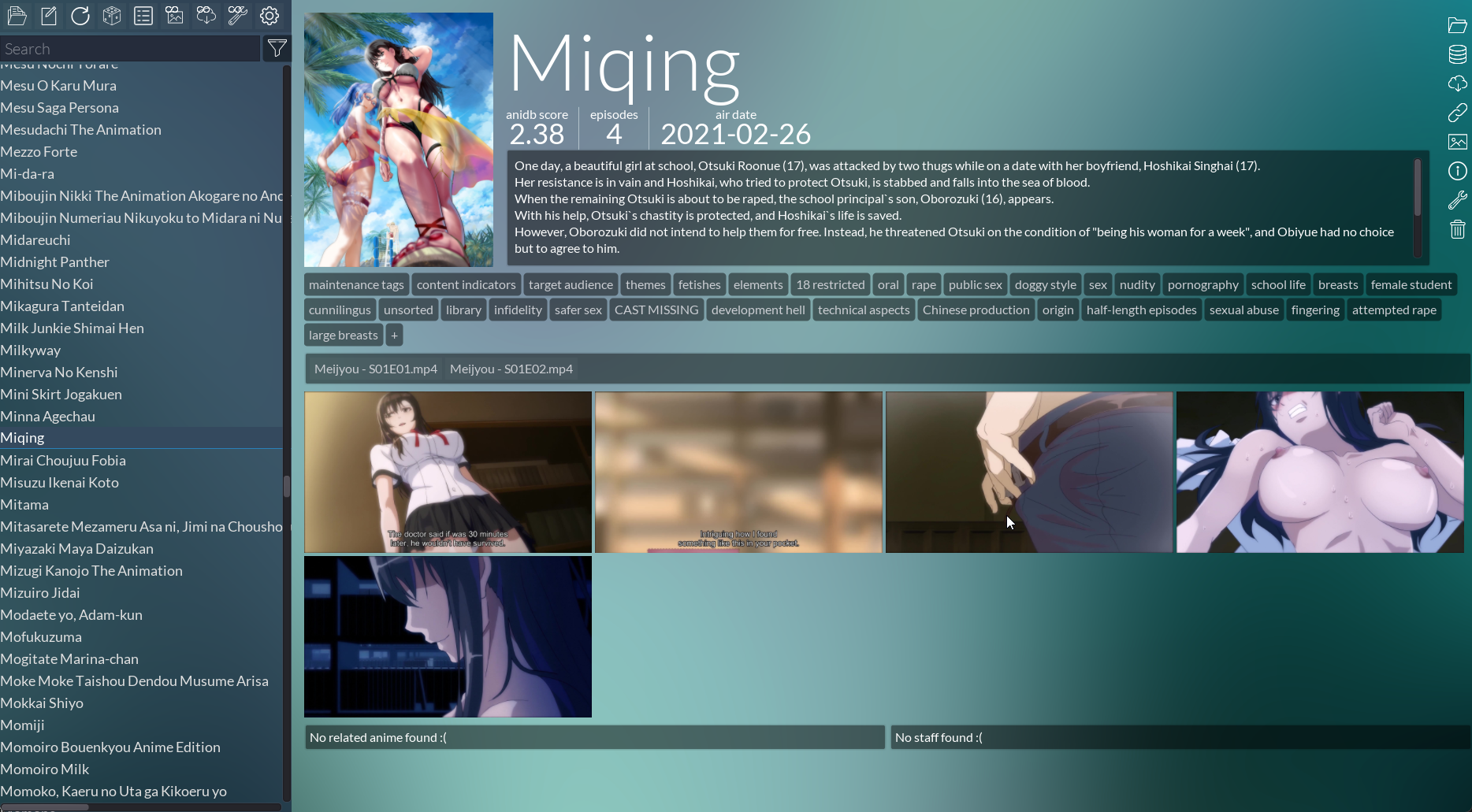
All necessary metadata, posters and images should now be available in AniTag.
AniTag - Show - 1
AniTag - Show - 2
Let me know if you have any questions in the comments.
Comments - 0